I dont think u need 4 viewports in blender. U can have all the views in one window, quickly changing to the one u actually need.
U can rotate into any sideview just by hitting 1 3 or 7 on the numpad (front side top)
And u can rotate view freely with middle mouse button while holding down the shift key. (for zoom hold ctrl)
But here is my setup in a bit more detail.
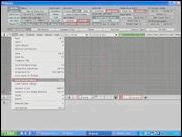
Points of interest marked with red.
First thing first, u can have that top side setup window by dragging the edge of the main menubar down.
From left to right in it:
Trackball vs Turntable:
Trackball is default, and it almost deterred me from using blender, until i found where to change it.
Turntable fixates the z axis, so cant tilt the view accidently. Its very good for handling the model as whole, as it wont turn suddenly upside down and such, and u can reserve the feel of symmetry.
Even tho trackball is considered much superior by most, dont bother with it early on.
If u wanna reset the z axis strait up vertical (if accidently tilted), just change to front wiev with numpad 1, then rotate the view from there.
Auto perspection:
Sideviews change into ortographic view, and -if u have autoperspection turned on- rotating with mouse changes them back into perspective view. u can change between the two with numpad key 5.
Around selection:
It makes the view rotate around what u actually work with, rather than some arbitrary point.
Right mouse button select- and -Pan view:
Well, its up to personal reference.
Pan view is useful, so u dont accidently rotate off of ortographic side views.
Right mouse is just convenient, as at some other places the program enforces its use. Its just a ltl get used to thing.
In the middle of the picture is nothing. Thats right, better delete any basic stuff (camera light cube) as u dont wanna export them.
Now push back up that setup window and go to the file menu and Save default settings. U dont have to bother with setting these anymore.
Two other thing i would like to show at the bottom side of the pic.
One is the finger pointing white hand. That shows/hides the transformation gizmo. Yea i know it sounds terrifying, but its a lot more convenient without it in the long run. Anyway its up to u if u use it or not.
U can use keybinds instead of it.
The pros, that they dont obscure the view, and u can work a lot more faster and precisly.
The cons, well, u have to get used to them.
G for grabbing, S for scaling, R for rotating.
Then u can constrain the axis u want to work on. Key X Y and Z. (Hold shift to constrain the other two axes)
Then u can hold down shift for precis moving, or can type in a number for exact.
The other is the snap button. Useful for pulling vertices together on the edge of neighbouring geosets among other things.
Box selection isnt too convenient indeed.
Still, there some stuff that can help in special cases.
First u can change the type of selection with crtl-tab between vertices edges and faces.
Holding alt selects a loop of them, while pressing ctrl and "+" selects all the connecting vertices. (Like i can select one tit on my models by selecting the tip of the
nipple, and holding ctrl+ a bit)
A bit extra info for view handling. Pressing Home zooms out to show the whole model, and pressing numpad 0 focuses-in on the current selection.
Sometimes if u zoomed a lot in and out it used get harder to drag the zoom. In this case helps zooming out with home and zooming back with numpad 0.
_________________
The Sculptor
Why do i feel like its springtime already?